
따꿍의 프로젝트
[2025.07.29] 파일 다운로드 받기 본문
문제 1. 어떤 파일 다운로드 받을지 찾기
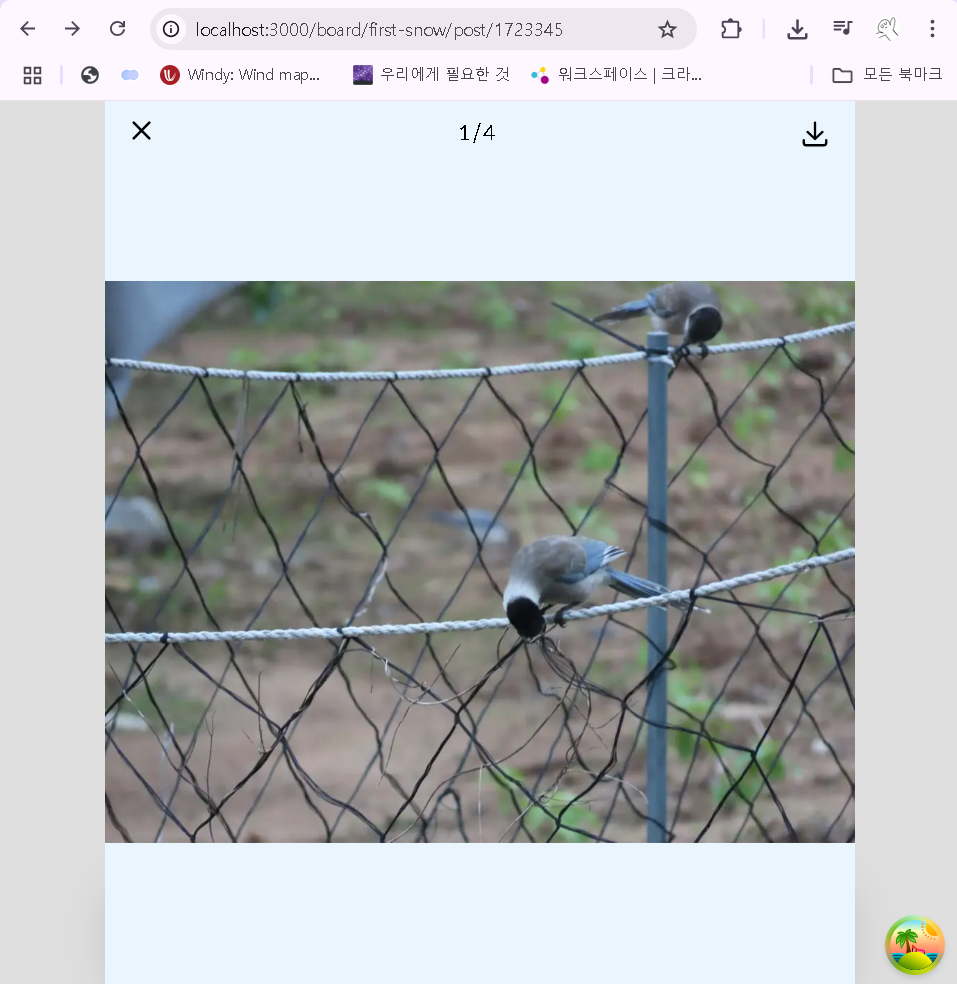
위에 1/4에서 1을 꺼내내야지 몇번째 이미지를 다운받을지 알 수 있다.
문제는 지금 코드로는 Swiper가 자동으로 pagination (1/4이거)를 만들어주고 있다는 것이다.
import { React, useRef, useState } from 'react';
import { Swiper, SwiperSlide } from 'swiper/react';
import { Pagination, Keyboard } from 'swiper/modules';

import { Icon, ChoiceModal } from '@/shared/component';

import styles from './FullScreenAttachment.module.css';
import 'swiper/css';
import 'swiper/swiper-bundle.css';

export default function FullScreenAttachment({
  attachmentUrls,
  clickedImageIndex,
  setClickedImageIndex,
}) {
  const paginationRef = useRef(null);
  const videoRefs = useRef([]);
  const [isChoiceModalOpen, setIsChoiceModalOpen] = useState(false);
  const urls = attachmentUrls.map((att) => att.url);

  const handleDownload = async (url) => {
	//...
  };

  return (
    <div className={styles.fullScreenContainer}>
      <div className={styles.topContainer}>
        <Icon
          id={'x'}
          width={'1.8rem'}
          height={'1.8rem'}
          className={styles.x}
          onClick={() => {
            //clickedImageIndex가 0이야지 FullScreenAttachment가 보이지 않음 (PostPage.jsx 분기처리 확인하기)
            setClickedImageIndex(0);
          }}
        />
        <p
          className={`${styles.pagination} swiper-custom-pagination`}
          ref={paginationRef}
        ></p>
        <Icon
          id={'download'}
          width={'2.4rem'}
          height={'2.4rem'}
          className={styles.download}
          onClick={() => {
            setIsChoiceModalOpen(true);
          }}
        />
      </div>
      <div className={styles.bodyContainer}>
        <Swiper
          autoHeight={true}
          className={styles.attachmentsContainer}
          modules={[Pagination, Keyboard]}
          slidesPerView={1}
          initialSlide={clickedImageIndex - 1}
          keyboard={{
            enabled: true,
            onlyInViewport: false,
          }}
          pagination={{
            el: '.swiper-custom-pagination',
            type: 'fraction',
          }}
        >
          {attachmentUrls.map((att, index) => (
            <SwiperSlide key={index} className={styles.attachmentsSlide}>
              {att.type === 'PHOTO' ? (
                <img
                  src={att.url}
                  className={styles.attachment}
                  draggable={false}
                />
              ) : (
                <div
                  className={styles.videoWrapper}
                  onClick={() => {
                    const video = videoRefs.current[index];
                    if (video.paused) {
                      video.play();
                    } else {
                      video.pause();
                    }
                  }}
                >
                  <video
                    //videoRefs의 첨부파일 index 위치에 el (video element) 저장
                    //특정 index 위치에만 video가 저장되고, 비어있는 index들은 자동으로 undefined가 채워짐
                    ref={(el) => (videoRefs.current[index] = el)}
                    src={att.url}
                    className={`${styles.attachment} ${styles.videoElement}`}
                    draggable={false}
                    controls
                  />
                </div>
              )}
            </SwiperSlide>
          ))}
        </Swiper>
      </div>
      <ChoiceModal
        id='save-image'
        isOpen={isChoiceModalOpen}
        closeFn={() => setIsChoiceModalOpen(false)}
        optionFns={[
          () => {},
          () => {},
        ]}
      />
    </div>
  );
}
보다시피 Swiper의 pagination 옵션에 {el: '.swiper-custom-pagination'}이 들어가있고,
<p>의 className에 swiper-custom-pagination을 넣어서 연결해준다.
자 이제 ChoiceModal에서 optionFns은 모달의 첫번째, 두번째.... 옵션을 누를때 실행되는 함수들이다.
ChoiceModal은 이미지 다운로드 받을때 띄워주는 모달이다.
(첫번째 함수는 '게시글 사진 전체 저장', 두번째 함수는 '이 사진만 저장'임)
두번째 함수가 '이 사진만 저장'이라서 어떤 사진을 다운받을지 index를 정확히 전달해줘야한다.
방법 1.
p 태그의 내용을 꺼내서, /을 split해서 사용하기
<ChoiceModal
	id='save-image'
	isOpen={isChoiceModalOpen}
	closeFn={() => setIsChoiceModalOpen(false)}
	optionFns={[
          () => {
            //게시글 사진 전체 저장 - 전체 파일들을 zip 해서 리턴하기
            //attachmentUrls안에 있는 모든 url을 zip 해서 한 파일로 만들고, 그걸 다운로드 받게 하기
            handleDownload();
          },
          () => {
            //이 사진만 저장
            //attachmentUrls[currentIndex]
            const currentIndex =
              paginationRef.current?.textContent.split('/')[0] - 1;
            handleDownload(urls[currentIndex]);
            //console.log('option2');
	},
	]}
/>
방법 2.
onSlideChange 이벤트를 사용하는 방법이 있다.
Swiper 자체에 slide 이동을 감지하는 onSlideChange라는 이벤트가 있는데
const [activeIndex, setActiveIndex] = useState(clickedImageIndex - 1);

<Swiper
  ...
  onSlideChange={(swiper) => setActiveIndex(swiper.activeIndex)}
>
activeIndex 자체를 사용하는 방법이 있다.
문제 2. 다운로드하는 방법
이제 다운로드 받는 방법을 알아봐야 한다.
You can programmatically initiate a download in JavaScript by creating an <a> element and triggering a click on it. Here's how to do it step by step:
function downloadFile(url, filename = 'download') {
  const a = document.createElement('a');
  a.href = url;
  a.download = filename;
  a.style.display = 'none';
  document.body.appendChild(a);
  a.click();
  document.body.removeChild(a);
}
JS도, React도 a 태그를 만들어서 프로그램적으로 클릭한 후 a 태그를 없애는 식으로 진행한다고 한다.
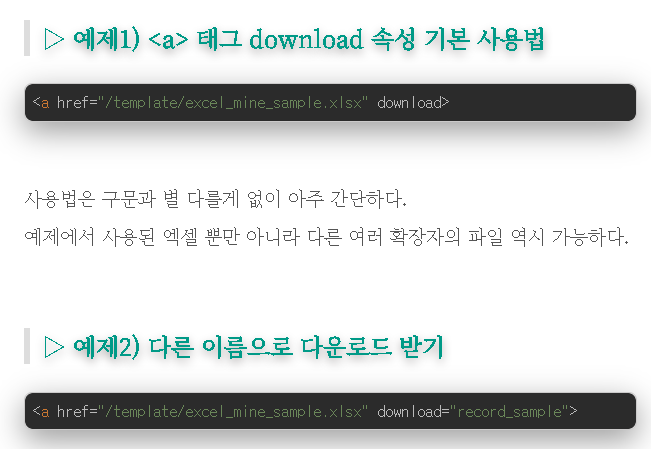
a 태그에 download를 붙이면 복잡한 기능의 다운로드로는 사용을 못하고 일반 이미지, 엑셀 템플릿 등 고정된 것들에 한해서만 사용하기에 좋다.
<a href='filepath' download>
❓ So currently, attachmnetUrls are already in a url format and I cannot recreate what its name was before it was processed through S3 and lambda.
If I don't put anything as a filename, would it automatically name itself like its url?
Yes, if you leave the download attribute empty, browsers will fall back to the filename from the URL (the last part of the URL path).
- If your S3 or Lambda URL has no filename part (e.g., a signed URL like https://.../file?token=123), the browser may default to:
- download
- or a random name like file
- If S3 objects have a Content-Disposition: attachment; filename="original.jpg" header set, that filename takes precedence.
문제 3. 여러개의 이미지 다운받기
-> zip multiple files
To zip multiple files directly from URLs (like your attachmentUrls) on the client side, you can use a JavaScript library like JSZip. This works well in React and avoids needing a server endpoint for zipping.
npm install jszip file-saver
- JSZip → creates the ZIP archive in memory.
- file-saver → triggers the download of the final ZIP file.
문제 4. 이미지가 다운로드 안 받아짐
문제 4.1 만일 handleDownload가 백엔드에서 건내준 url (S3->lambda)을 바로 쓴다면
const handleDownload = (url) => {
    const a = document.createElement('a');
    a.href = url;
    a.download = '';
    a.style.display = 'none';
    document.body.appendChild(a);
    a.click();
    document.body.removeChild(a);
  };
이게 뜨거나
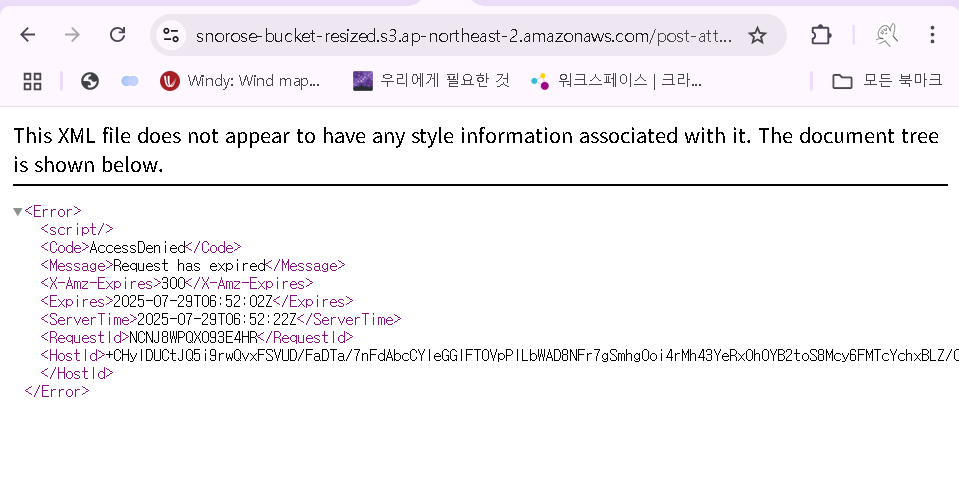
이게 뜬다
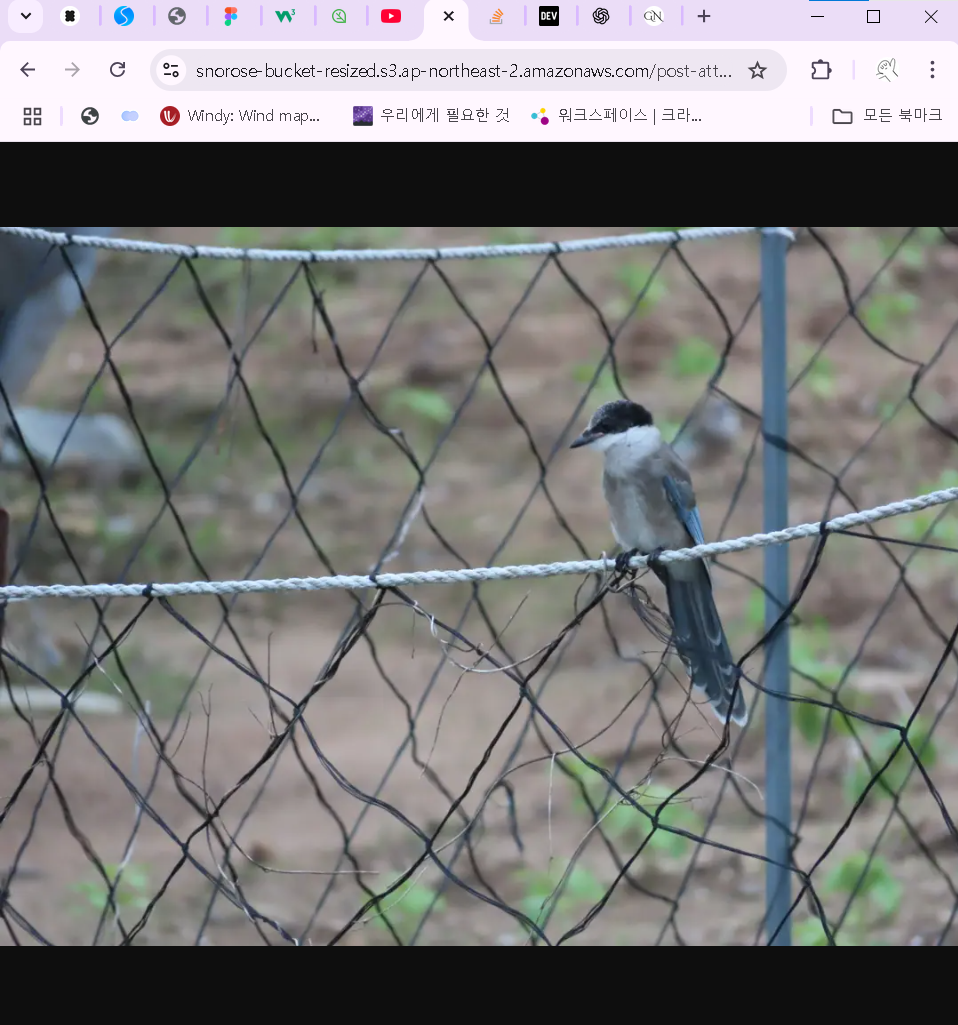
(다운로드 받아지지는 않고 그냥 url 타고 redirect되어 그냥 큰 화면으로 이미지를 보게 됨)
This is happening because S3 signed URLs typically don't allow forced download unless the server specifies Content-Disposition: attachment headers. The download attribute on <a> is just a hint to the browser; it doesn’t override:
- Cross-origin security rules – If the file is on another domain (like S3) without Access-Control-Allow-Origin and Content-Disposition, browsers will open it in a new tab instead of downloading.
- File type handling – Images, videos, PDFs often open in-browser if headers don’t instruct otherwise.
해결책 4.1 Include Content-Disposition: attachment headers when generating signed URLs
문제 4.2 만일 handleDownload가 file을 fetch하고 Blob으로 바꾼뒤 다운로드 받을시 (force download in client)
const handleDownload = async (url) => {
    const response = await fetch(url, { mode: 'cors' });
    const blob = await response.blob();

    const a = document.createElement('a');
    const blobUrl = URL.createObjectURL(blob);

    a.href = blobUrl;
    a.download = url.split('/').pop(); // fallback name
    document.body.appendChild(a);
    a.click();
    a.remove();
    URL.revokeObjectURL(blobUrl);
  };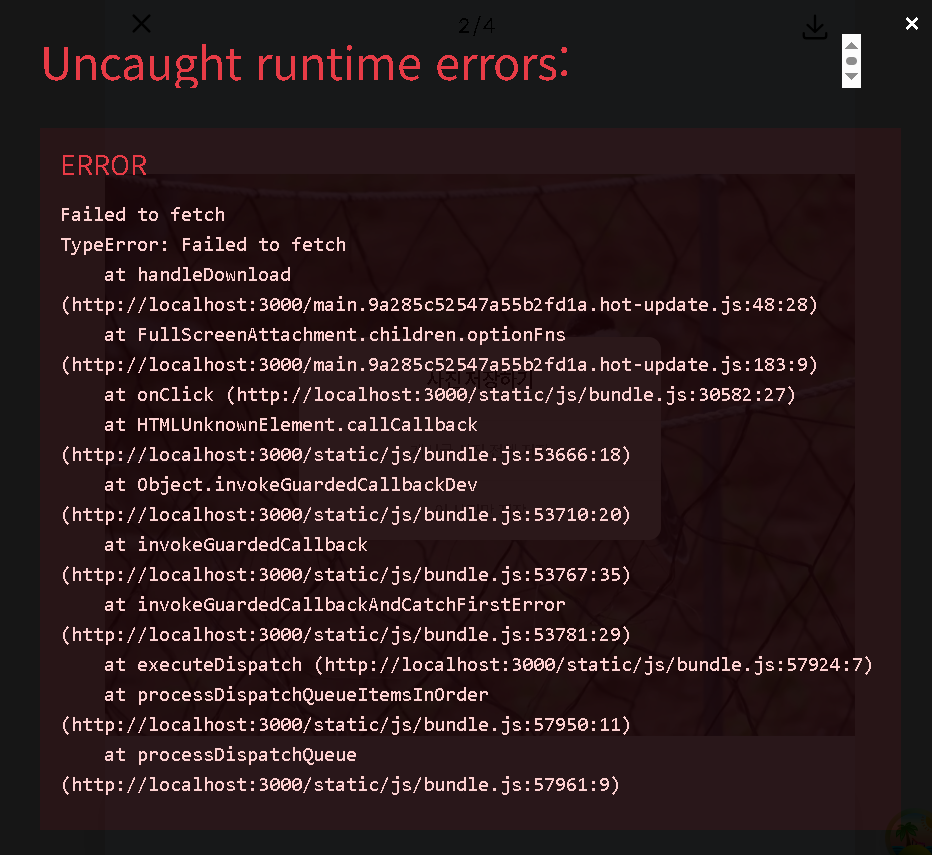
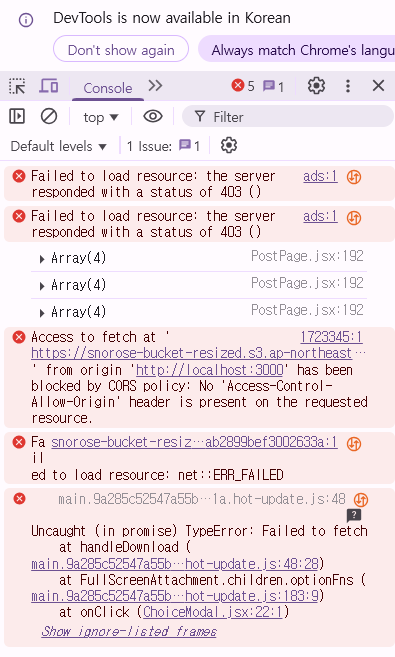
S3 bucket is blocking cross-origin fetch requests.
When you try to fetch() the file in the browser (to create a Blob), S3 rejects it because there’s no Access-Control-Allow-Origin header in the response.
- The download attribute only works reliably if:
- The URL is same-origin or CORS-allowed
- Or the server sets Content-Disposition: attachment
- Your S3 signed URLs work fine for direct navigation (browser GET request), but cross-origin JavaScript fetches are blocked unless CORS is enabled.
해결책 4.2 S3 버킷 CORS 추가
<CORSConfiguration>
  <CORSRule>
    <AllowedOrigin>http://localhost:3000</AllowedOrigin>
    <AllowedMethod>GET</AllowedMethod>
    <AllowedMethod>HEAD</AllowedMethod>
    <AllowedHeader>*</AllowedHeader>
    <ExposeHeader>Content-Disposition</ExposeHeader>
  </CORSRule>
</CORSConfiguration>
But I'm pretty sure http://localhost:3000 is in the CORS policy.
The backend team added it for me a couple of months ago, and also if it was blocked all the other APIS wouldn't have worked, no?
Your API calls vs S3 presigned URL
- Your APIs:
Likely go through your backend (e.g., http://api.yourserver.com)
→ The backend already has CORS configured properly to allow http://localhost:3000. - S3 presigned URLs:
When you fetch() a signed S3 URL, the request goes directly to S3, not through your backend.
So the CORS config on S3 bucket itself must allow:- http://localhost:3000
- GET method
- Exposing headers (if needed).
This is separate from the CORS setup on your backend server.
백엔드의 답변
Content-Disposition을 attachment 으로 설정한 API를 만들면 바로 다운로드하게 할 수 있다.
즉, 클라이언트에서 ‘다운로드’를 원할 때 위 API를 호출해주면 브라우저 통해서 다운받을 수 있다.
백엔드에서는 게시물 상세 조회할 때, 이미지 조회용 presigned url, 다운로드용 presigned url을 각각 발급해주면 구현은 가능하다
그러나!!!
우리가 처음 다운로드 기능을 넣자고 한 이유가, GET 요청 한번만으로 조회/다운로드가 가능하도록 할 수 있어서였다.
다시말해, 다운로드로 인해 추가적인 HTTP 요청이 발생하도록 구현하는 것은 우리가 정책을 정할 때의 가정에 위배된다.
그래서 다음과 같은 구현을 제안한다.
상황 정리
- 사용자가 웹페이지에서 presigned URL로 이미지 GET 요청을 보내서 이미지를 조회(로드)함
- 이때 이미지는 브라우저가 캐시하거나 메모리에 올려둠
- 사용자가 나중에 "다운로드" 버튼을 누르면
- 새로 presigned URL을 요청하지 않고, 이미 받아둔 이미지 데이터를 활용해 다운로드하게 하고 싶음
구현 방법 개요
- 이미지 데이터를 미리 로드하고 메모리나 브라우저 캐시에 저장
- 보통 <img src="presigned_url">로 이미지를 조회하면 브라우저가 내부적으로 이미지 데이터를 가져와 렌더링하고 캐시에 저장합니다.
- 다운로드 버튼 클릭 시, 이미 받아둔 이미지 데이터 활용
- 이미지가 이미 로드되어 있으면, 자바스크립트에서 다음 방법으로 다운로드 처리 가능
- fetch API로 presigned URL에서 이미지 Blob을 미리 불러서 메모리에 저장(또는 <img>가 로드된 후 canvas에 옮겨서 data URL로 변환)
- 다운받을 때에는 저장해둔 Blob이나 data URL을 기반으로 임시 <a> 태그 생성 후 download 속성 사용해 다운로드 유도
구체적인 구현 예시
let imageBlob = null;

// 1. 페이지 로드 시 혹은 이미지 조회 시 presigned URL로 fetch해서 Blob 저장
fetch(presignedUrl)
  .then(res => res.blob())
  .then(blob => {
    imageBlob = blob;  // 이미지 데이터 메모리에 저장
    const imgUrl = URL.createObjectURL(blob);
    document.getElementById('imageElem').src = imgUrl;
  });

// 2. 다운로드 버튼 클릭 시 미리 저장된 Blob를 사용해 다운 유도
document.getElementById('downloadBtn').addEventListener('click', () => {
  if (!imageBlob) {
    alert("이미지 데이터가 준비되지 않았습니다!");
    return;
  }

  const downloadUrl = URL.createObjectURL(imageBlob);
  const a = document.createElement('a');
  a.href = downloadUrl;
  a.download = 'filename.png';  // 저장될 파일명 지정
  document.body.appendChild(a);
  a.click();
  a.remove();
  URL.revokeObjectURL(downloadUrl);
});
실제 프론트 코드 @뚜껑
  const handleDownload = async (url) => {
    const response = await fetch(url, { mode: 'cors' });
    const blob = await response.blob();

    const a = document.createElement('a');
    const blobUrl = URL.createObjectURL(blob);

    a.href = blobUrl;
    a.download = url.split('/').pop(); // fallback name
    document.body.appendChild(a);
    a.click();
    a.remove();
    URL.revokeObjectURL(blobUrl);
  };
민주야 이걸로 해볼래?
  const s3Url = '<https://snorose-bucket-resized.s3.ap-northeast-2.amazonaws.com/post-attachment/1723433/resized-74879273-404b-4792-a7ff-150906dddd55_jiny.webp?X-Amz-Algorithm=AWS4-HMAC-SHA256&X-Amz-Date=20250804T122811Z&X-Amz-SignedHeaders=host&X-Amz-Credential=AKIAQJYUDUFIEX5HAQ4A%2F20250804%2Fap-northeast-2%2Fs3%2Faws4_request&X-Amz-Expires=300&X-Amz-Signature=298882c378dc9ac1df2d3b34c7c7f2c43ab42e176c1c25cbedd00704032c87dc>';

  const testDownload = async () => {
    setLoading(true);
    setError('');
    setResult('');

    try {
      console.log('다운로드 테스트 시작:', s3Url);

      const response = await fetch(s3Url, { mode: 'cors' });
      console.log('다운로드 응답 상태:', response.status);

      if (response.ok) {
        const blob = await response.blob();

        const a = document.createElement('a');
        const blobUrl = URL.createObjectURL(blob);

        a.href = blobUrl;
        a.download = s3Url.split('/').pop().split('?')[0]; // URL에서 파일명 추출
        document.body.appendChild(a);
        a.click();
        a.remove();
        URL.revokeObjectURL(blobUrl);

        setResult(`다운로드 성공! 파일 크기: ${blob.size} bytes`);
      } else {
        setError(`다운로드 HTTP 오류: ${response.status} ${response.statusText}`);
      }
    } catch (err) {
      console.error('다운로드 오류:', err);
      setError(`다운로드 CORS 오류: ${err.message}`);
    } finally {
      setLoading(false);
    }
  };
@신진영 이 테스트할때 쓴 코드
import React, { useState } from 'react';

const App = () => {
  const [result, setResult] = useState('');
  const [loading, setLoading] = useState(false);
  const [error, setError] = useState('');

  const s3Url = '<https://snorose-bucket-resized.s3.ap-northeast-2.amazonaws.com/post-attachment/1723433/resized-74879273-404b-4792-a7ff-150906dddd55_jiny.webp?X-Amz-Algorithm=AWS4-HMAC-SHA256&X-Amz-Date=20250804T113650Z&X-Amz-SignedHeaders=host&X-Amz-Credential=AKIAQJYUDUFIEX5HAQ4A%2F20250804%2Fap-northeast-2%2Fs3%2Faws4_request&X-Amz-Expires=300&X-Amz-Signature=bd8150741d133e7dfb114c77e163fa1e005feb5943d4278440a8d3e560faf4bb>';

  const testFetch = async () => {
    setLoading(true);
    setError('');
    setResult('');

    try {
      console.log('요청 시작:', s3Url);

      const response = await fetch(s3Url, {
        method: 'GET',
        mode: 'cors'
      });

      console.log('응답 상태:', response.status);
      console.log('응답 헤더:', response.headers);

      if (response.ok) {
        const blob = await response.blob();
        const imageUrl = URL.createObjectURL(blob);
        setResult(`성공! 이미지 크기: ${blob.size} bytes`);

        const img = document.createElement('img');
        img.src = imageUrl;
        img.style.maxWidth = '300px';
        img.style.margin = '10px 0';

        const resultDiv = document.getElementById('image-result');
        resultDiv.innerHTML = '';
        resultDiv.appendChild(img);
      } else {
        setError(`HTTP 오류: ${response.status} ${response.statusText}`);
      }
    } catch (err) {
      console.error('Fetch 오류:', err);
      setError(`CORS 오류: ${err.message}`);
    } finally {
      setLoading(false);
    }
  };

  const testDownload = async () => {
    setLoading(true);
    setError('');
    setResult('');

    try {
      console.log('다운로드 테스트 시작:', s3Url);

      const response = await fetch(s3Url, {
        method: 'GET',
        mode: 'cors'
      });

      console.log('다운로드 응답 상태:', response.status);
      console.log('다운로드 응답 헤더:', response.headers);

      if (response.ok) {
        const blob = await response.blob();

        // 다운로드 링크 생성 (이때 CORS 문제가 발생할 수 있음)
        const url = window.URL.createObjectURL(blob);
        const link = document.createElement('a');
        link.href = url;
        link.download = 'image_name.jpg';

        // 자동 다운로드 트리거
        document.body.appendChild(link);
        link.click();
        document.body.removeChild(link);

        // URL 정리
        window.URL.revokeObjectURL(url);

        setResult(`다운로드 성공! 파일 크기: ${blob.size} bytes`);
      } else {
        setError(`다운로드 HTTP 오류: ${response.status} ${response.statusText}`);
      }
    } catch (err) {
      console.error('다운로드 오류:', err);
      setError(`다운로드 CORS 오류: ${err.message}`);
    } finally {
      setLoading(false);
    }
  };

  const testDirectDownloadLink = () => {
    // 직접 다운로드 링크 생성 (이것이 CORS 문제를 일으킬 수 있음)
    const link = document.createElement('a');
    link.href = s3Url;
    link.download = 'direct-download.webp';
    link.target = '_blank';
    document.body.appendChild(link);
    link.click();
    document.body.removeChild(link);

    setResult('직접 다운로드 링크 클릭됨 (CORS 오류 발생 가능)');
  };

return (- 직접 요청 테스트: 일반 GET 요청으로 이미지를 가져와 화면에 표시합니다.
- Fetch 후 다운로드: fetch로 이미지를 가져온 후 blob으로 변환하여 다운로드합니다.
- 직접 다운로드 링크: S3 URL을 직접 다운로드 링크로 사용합니다 (CORS 오류 발생 가능).
- 브라우저 개발자 도구의 콘솔과 네트워크 탭에서 자세한 정보를 확인할 수 있습니다.
- 장점
- 다운로드 시 API 호출이 추가로 발생하지 않음
- presigned URL 만료 여부에 상관없이, 이미 받아둔 데이터를 바로 다운로드 가능
- UX가 빠르고 부드러움
- 주의점
- 이미지 크기가 크면 메모리 부담 → 우리는 크기를 충분히 최적화(수 KB정도)하므로 문제 없을 것이다.
- 최초 fetch가 성공적으로 완료되어야 다운로드 가능 → 이건 원래 그래야하지 않나?
- 이미지가 여러 개라면 각 이미지를 별도로 fetch해야 하므로 관리가 복잡해질 수 있음 → API 여러번 호출보다는 나을 것 같다.
- 사용자가 이미 조회한 이미지 데이터를 브라우저에 미리 받아 저장해 두고,
- 다운로드 버튼 누를 때 그 데이터를 재사용해 새 presigned URL 호출 없이 다운로드 기능을 구현할 수 있습니다.
⭐⭐⭐해결책 ⭐⭐⭐
const handleDownload = async (s3Url) => {
    const response = await fetch(s3Url, {
      mode: 'cors',
      cache: 'no-store',
      headers: {
        'Cache-Control': 'no-cache',
      },
    });

    if (response.ok) {
      const blob = await response.blob();
      const url = window.URL.createObjectURL(blob);
      const link = document.createElement('a');
      link.href = url;
      link.download = '첨부파일.jpg';

      // 자동 다운로드 트리거
      document.body.appendChild(link);
      link.click();
      document.body.removeChild(link);

      // URL 정리
      window.URL.revokeObjectURL(url);
    }
  };
중에 이 부분이 가장 중요하다.
const response = await fetch(s3Url, {
      mode: 'cors',
      cache: 'no-store',
      headers: {
        'Cache-Control': 'no-cache',
      },
});
-
mode: 'cors':This setting indicates that the request should follow the Cross-Origin Resource Sharing (CORS) protocol. When making a request to a different origin (domain, protocol, or port), the browser enforces CORS to ensure security.
- For "simple requests," the browser sends the request directly, but will only expose the response to your JavaScript code if the server includes the appropriate Access-Control-Allow-Origin header in its response.
- For "non-simple requests," the browser first sends a "preflight" OPTIONS request to the server to check if the actual request is allowed before sending it.
백엔드에서 resize 버킷 CORS 세팅을 해놨기 떄문에 사실은 CORS 프로토콜 때문에 문제가 생기는 게 아니긴 한데
그래도 무조건 CORS 프로토콜 따르게 하는것이 좋기 때문에 추가 -
cache: 'no-store':This directive instructs the browser and any intermediate caches to not store the response in any form of persistent storage (like disk-based caches). This is primarily used for sensitive data or resources that should never be cached, ensuring privacy and data freshness.
The no-cache directive does not prevent the storing of responses but instead prevents the reuse of responses without revalidation.
If you don't want a response stored in any cache, use no-store.
Cache-Control: no-storeHowever, in general, a "do not cache" requirement in practice amounts to the following set of circumstances:
- Don't want the response stored by anyone other than the specific client, for privacy reasons.
- Want to provide up-to-date information always.
- Don't know what could happen in outdated implementations.
원래 받은 데이터들 (웹페이지,
- no-cache: This directive allows caches to store a response, but requires them to revalidate it with the origin server before serving it from the cache. This means that even if a cached copy exists, the browser will send a conditional request (e.g., using If-None-Match or If-Modified-Since) to the server to check if the resource has changed. If the server indicates the resource is still fresh, the cached copy can be used; otherwise, a new response is retrieved.
If you do not want a response to be reused, but instead want to always fetch the latest content from the server, you can use the no-cache directive to force validation.
By adding Cache-Control: no-cache to the response along with Last-Modified and ETag — as shown below — the client will receive a 200 OK response if the requested resource has been updated, or will otherwise receive a 304 Not Modified response if the requested resource has not been updated.
So I had an CORS error whenever I tried to fetch a s3Url to my frontend.
The code used to be this:
const response = await fetch(s3Url);
But now the code looks like this and the error is fixed now:
const response = await fetch(s3Url, { mode: 'cors', cache: 'no-store', headers: { 'Cache-Control': 'no-cache', }, });
I'm trying to figure out why not storing the res and requiring fresh reses was the solution here. I have my suspisions
1. The s3Urls have a timeout. The fetch called the cached outdated s3Url and caused an error
-> Problem: Outdated s3Urls return a 403 error, but the error we're looking at here is a CORS error
2. The browser cached a previous CORS error The first time I tried fetching s3Urls, the backend had not added the CORS settings (didn't add localhost:3000) so it naturally returned a CORS error. The browser, after this first encounter, pulled out the CORS error from the cache every subsequent requests
-> Problem: The subsequent requests used a different s3Url... The first few part of the urls are the same though. I don't know if that could make a difference
Suspicion #2 (browser caching the CORS error) is the most likely explanation here, and the change you made essentially forces the browser to bypass any cached response (including cached CORS errors).
Why your original fetch(s3Url) caused persistent CORS errors
- When you first requested the S3 URL, your backend had not yet added the CORS rule (localhost:3000).
- The browser received a failed CORS preflight or a response missing the correct Access-Control-Allow-Origin.
- Browsers are allowed to cache failed CORS responses for a period (sometimes the same as normal HTTP caching) even if the actual response later would succeed.
- Later, even with a different presigned URL (different query params), the browser may have considered it a “similar request” to the same origin/path and reused the negative CORS result from its internal cache.
This is allowed because:- The browser uses the URL minus volatile query params as the cache key in some cases.
- If it already "knows" the server doesn't allow this origin, it may short-circuit and return the cached failure without hitting the network.
Why adding cache: 'no-store' fixed it
- cache: 'no-store' → do not read or write to HTTP cache, force a fresh request.
- This bypasses the cached CORS failure and triggers a new network fetch where the updated CORS rules are now applied correctly.
This behavior matches the scenario where cached negative CORS results are interfering.
Why theory #1 is less likely
- Expired presigned URLs return 403 Forbidden, not a CORS error.
- If your error console was saying “CORS policy error”, it never got a valid response at all; the request was blocked before processing the 403.
- Therefore, the problem was likely not stale signed URLs, but stale CORS policy failure cache.
Conclusion:
- The browser cached a failed CORS preflight or response from earlier attempts (before backend allowed your origin).
- Later fetches got blocked locally, even for new URLs, until you explicitly bypassed cache with no-store.
- This is a known gotcha with browsers aggressively caching negative CORS results.
문제 5. 썸네일 API 500 에러

문제점
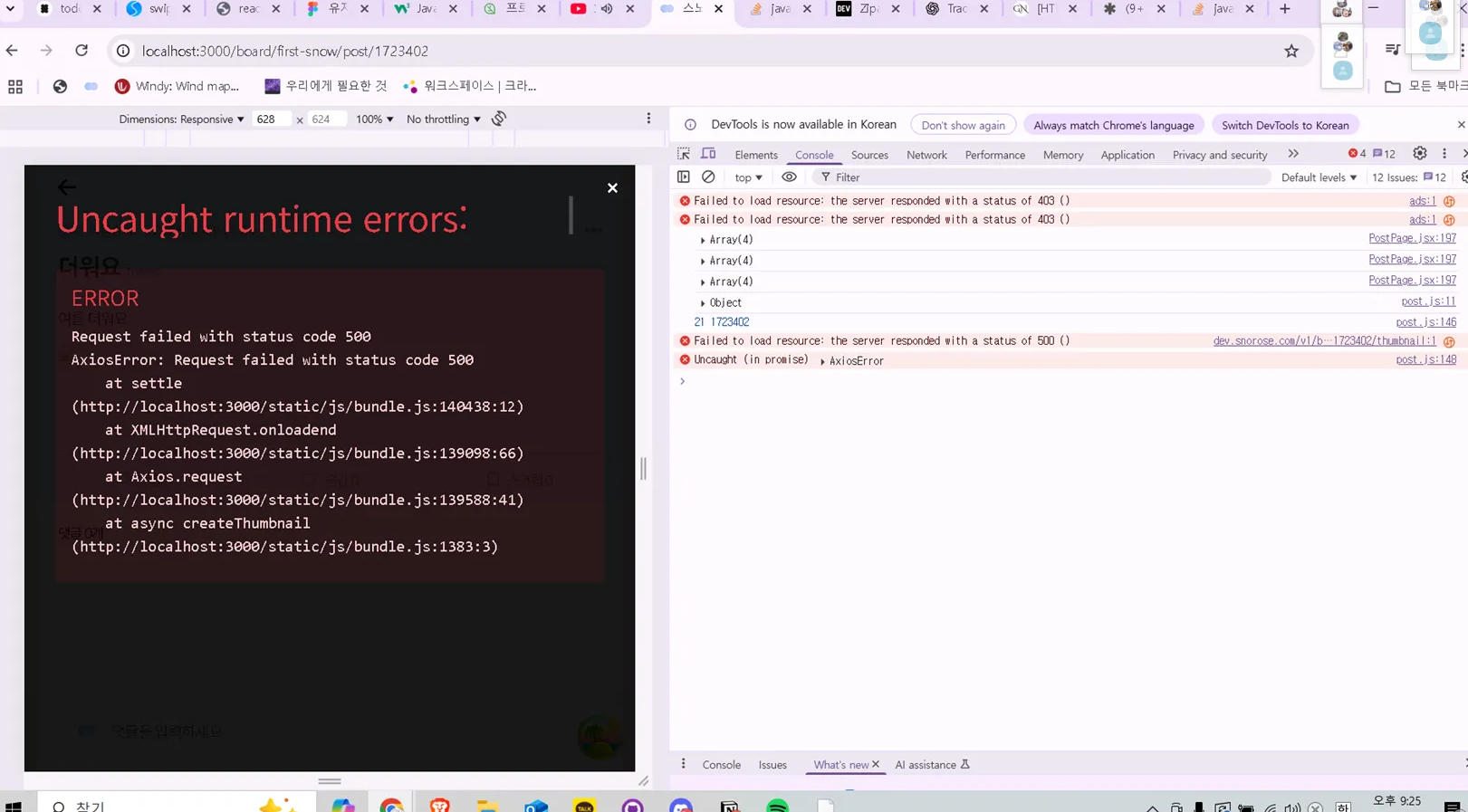
API를 부르는 당시에 500에러가 뜬다. 이 에러를 무시하고 게시글 나열 화면으로 돌아가면 또 정상적으로 썸네일이 잘 생성되고 불려왔음을 확인할 수 있음
문제 원인
thumbnail 500 에러 ⇒ 토큰 있는 authAxios로 불러야했는데 토큰 없는 defaultAxios 사용했어서 생긴 문제
defaultAxios로 불러도 썸네일이 잘 생성되고 있어서 토큰 실수라고 생각을 못했음
- resize 404 에러 ⇒ 최적화 이미지 생성이 느려서 안 뜨는 것
- thumbnail 500 에러 ⇒ 토큰 있는 authAxios로 불러야했는데 토큰 없는 defaultAxios 사용했어서 생긴 문제 defaultAxios로 불러도 썸네일이 잘 생성되고 있어서 토큰 실수라고 생각을 못했음
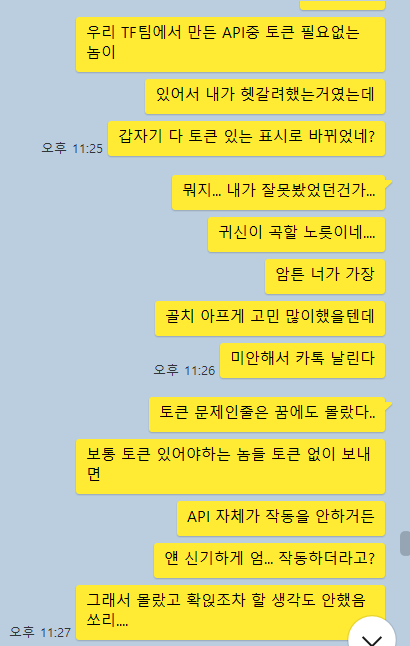
❓ 왜 토큰을 안 주었는데도 API가 잘 돌아갔는가 (썸네일 생성이 잘 되었는가?)
-> 신진영이 설명해줬는데 못 이해함. 나중에 채일이가 듣고 설명해줄 예정
결과 코드
src>feature>board>component>FullScreenAttachment>FullScreenAttachment.jsx
import { React, useRef, useState } from 'react';
import { Swiper, SwiperSlide } from 'swiper/react';
import { Pagination, Keyboard } from 'swiper/modules';
import JSZip from 'jszip';
import { saveAs } from 'file-saver';

import { Icon, ChoiceModal } from '@/shared/component';

import styles from './FullScreenAttachment.module.css';
import 'swiper/css';
import 'swiper/swiper-bundle.css';

export default function FullScreenAttachment({
  attachmentUrls,
  clickedImageIndex,
  setClickedImageIndex,
}) {
  const paginationRef = useRef(null);
  //스와이핑 액션에 대해 video와 swiper이 충돌이 나서, js 코드로 직접 영상을 틀어줘야함 -> ref 필요
  const videoRefs = useRef([]);
  const [isChoiceModalOpen, setIsChoiceModalOpen] = useState(false);
  const urls = attachmentUrls.map((att) => att.url);

  const handleDownload = async (s3Url) => {
    const response = await fetch(s3Url, {
      mode: 'cors',
      cache: 'no-store',
      headers: {
        'Cache-Control': 'no-cache',
      },
    });

    if (response.ok) {
      const blob = await response.blob();
      const url = window.URL.createObjectURL(blob);
      const link = document.createElement('a');
      link.href = url;
      link.download = '첨부파일.jpg';

      // 자동 다운로드 트리거
      document.body.appendChild(link);
      link.click();
      document.body.removeChild(link);

      // URL 정리
      window.URL.revokeObjectURL(url);
    }
  };

  //다수의 첨부파일을 다운받을때 -> zip으로 묶고 다운받기
  const handleZipDownload = async (urls) => {
    const zip = new JSZip();
    for (let i = 0; i < urls.length; i++) {
      const url = urls[i];
      const urlParts = url.split('.');
      const ext =
        urlParts.length > 1 ? urlParts.pop().split(/\#|\?/)[0] : 'jpg';
      const filename = `첨부파일${i + 1}.${ext}`;
      const response = await fetch(url, {
        mode: 'cors',
        cache: 'no-store',
        headers: {
          'Cache-Control': 'no-cache',
        },
      });
      const blob = await response.blob();
      zip.file(filename, blob);
    }
    const zipContent = await zip.generateAsync({ type: 'blob' });
    saveAs(zipContent, 'attachments.zip');
  };

  return (
    <div className={styles.fullScreenContainer}>
      <div className={styles.topContainer}>
        <Icon
          id={'x'}
          width={'1.8rem'}
          height={'1.8rem'}
          className={styles.x}
          onClick={() => {
            //clickedImageIndex가 0이야지 FullScreenAttachment가 보이지 않음 (PostPage.jsx 분기처리 확인하기)
            setClickedImageIndex(0);
          }}
        />
        <p
          className={`${styles.pagination} swiper-custom-pagination`}
          ref={paginationRef}
        ></p>
        <Icon
          id={'download'}
          width={'2.4rem'}
          height={'2.4rem'}
          className={styles.download}
          onClick={() => {
            setIsChoiceModalOpen(true);
          }}
        />
      </div>
      <div className={styles.bodyContainer}>
        <Swiper
          autoHeight={true}
          className={styles.attachmentsContainer}
          modules={[Pagination, Keyboard]}
          slidesPerView={1}
          initialSlide={clickedImageIndex - 1}
          keyboard={{
            enabled: true,
            onlyInViewport: false,
          }}
          pagination={{
            el: '.swiper-custom-pagination',
            type: 'fraction',
          }}
        >
          {attachmentUrls.map((att, index) => (
            <SwiperSlide key={index} className={styles.attachmentsSlide}>
              {att.type === 'PHOTO' ? (
                <img
                  src={att.url}
                  className={styles.attachment}
                  draggable={false}
                />
              ) : (
                <div
                  className={styles.videoWrapper}
                  onClick={() => {
                    const video = videoRefs.current[index];
                    if (video.paused) {
                      video.play();
                    } else {
                      video.pause();
                    }
                  }}
                >
                  <video
                    //videoRefs의 첨부파일 index 위치에 el (video element) 저장
                    //특정 index 위치에만 video가 저장되고, 비어있는 index들은 자동으로 undefined가 채워짐
                    ref={(el) => (videoRefs.current[index] = el)}
                    src={att.url}
                    className={`${styles.attachment} ${styles.videoElement}`}
                    draggable={false}
                    controls
                  />
                </div>
              )}
            </SwiperSlide>
          ))}
        </Swiper>
      </div>
      <ChoiceModal
        id='save-image'
        isOpen={isChoiceModalOpen}
        closeFn={() => setIsChoiceModalOpen(false)}
        optionFns={[
          () => {
            //게시글 사진 전체 저장 - 전체 파일들을 zip 해서 리턴하기
            //attachmentUrls안에 있는 모든 url을 zip 해서 한 파일로 만들고, 그걸 다운로드 받게 하기
            handleZipDownload(urls);
            setIsChoiceModalOpen(false);
          },
          () => {
            //이 사진만 저장
            //attachmentUrls[currentIndex]
            const currentIndex =
              paginationRef.current?.textContent.split('/')[0] - 1;
            handleDownload(urls[currentIndex]);
            setIsChoiceModalOpen(false);
          },
        ]}
      />
    </div>
  );
}'웹프로젝트 > 스노로즈' 카테고리의 다른 글
| [2025.09.13] 첨부파일 TF 전체 과정 (0) | 2025.09.13 |
|---|---|
| [2025.08.06] 포트에 실행하고 있는 프로세스 죽이기 (0) | 2025.08.07 |
| [프로덕트 제작 시 놓치기 쉬운 이미지 처리 가이드] (0) | 2025.07.25 |
| [2025.06.28] FullScreenAttachment.jsx 문제 (video와 Swiper 충돌) (0) | 2025.06.28 |
| [2025.06.24] 파일 용량 제한 걸기 - alert가 두 번 뜨지 않음 (0) | 2025.06.28 |
