

따꿍의 프로젝트
[2026.02.09] 에디터 TF 배경, TipTap 선택 이유, 라이브러리 세팅하기 본문
에디터 TF팀 배경
구 스노로즈 데이터를 신규 스노로즈로 옮길려니,
예전에는 에디터가 있어서 색깔/기울기/볼드 등등 이런 추가적 기능들이 글에 첨가되어 있다.
이런 글들을 신규 스노로즈에 에디터를 추가하지 않고 마이그레이션하려니까
해당 글들이 깨질것 같았다.
이런 기능들을 쓰고 있는 글들이 버릴 수 있는 사소한 글도 아니었기에 (정보성 글도 꽤 많았음)
에디터를 추가하기로 결정되었다.
TipTap 선택 이유
React 전용 에디터 라이브러리
Pro (장점)
- 툴바에 대한 UI를 직접 선택해서 (어떤 기능을 넣고 뺄지 선택 가능) 버튼과 기능 연결만 하면 됨
- React 친화적
- 확장성 - 그림 삽입과 주석 기능이 구현하기 쉬움
- 가벼움 -> 필요한 기능만 골라서 설치 가능해서, 필요없는 기타 기능들 때문에 느려지는 것 방지 가능하다.
TipTap에서 구현하고 싶은 기능
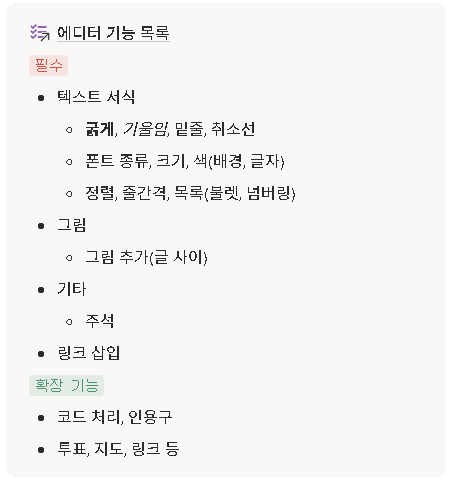
구 스노로즈 에디터 기능
=> 최소한으로 추가해야하는 에디터 기능들이다.
- 글꾸: 폰트종류 / 크기 / 굵기 / 기울이기 / 밑줄 / 취소 / 색(배경,글자)
- 서식: 정렬 / 줄간격 / 목록
- 그림: 그림 추가 (글사이), 주석
+ (확장하고 싶은 기능: 투표, 지도, 링크 등)
허나 프런트엔드 쪽에서 이런 의견이 나왔다.
- 사용자마다 서식(크기, 색상 등)을 다르게 사용할 경우,
전체적인 피드 및 게시글 상세 화면의 시각적 일관성이 떨어질 우려가 있습니다.
- 모바일 환경 특성상 좁은 화면 내에 다수의 에디터 도구 모음이 노출될 경우 사용성이 저하될 우려가 있습니다.
- 커뮤니티는 방대한 정보를 기록하는 블로그와 달리, 빠른 정보 소비와 활발한 소통이 주 목적이라고 생각해서 간결한 인터페이스를 추구하는 것이 좋을 것 같습니다.
- 리자들이 작성하는 공지글에 먼저 일부 에디터 기능 (주요 색상 지원, 굵기 등)을 도입해보는게 어떤지? 반면 일반 유저는 링크삽입, 기울림, 취소선, 굵기 정도의 기능만 순차적으로 도입하기
=> 가독성을 해치지 않는 선에서 링크 삽입, 기울임(Italic), 취소선 3가지 기능만 제공하는게 어떤지
운기 팀에서는 반면 이러한 의견이 나왔다.
- 학우들이 에브리타임 말고 우리 페이지를 사용하는 데에는 블로그성이 강한 특징 때문도 있다고 생각했다
(글꾸가 가능한 점이 스노로즈만의 강점이라고 생각했음)
- 그래서 에디터 기능 최대한 쓰고 싶긴 하다
<결론>
TipTap 세팅 방법
https://tiptap.dev/docs/editor/getting-started/install/react
React | Tiptap Editor Docs
Learn how to integrate the Tiptap Editor with a React app and develop your custom editor experience.
tiptap.dev
1. 라이브러리 설치하기
npm install @tiptap/react @tiptap/pm @tiptap/starter-kit
2. TipTap 컴포넌트 생성하기
Hook-based Manual Approach
import { useMemo } from 'react';
import {
  useEditor,
  EditorContent,
  EditorContext,
  useCurrentEditor,
} from '@tiptap/react';
import { FloatingMenu, BubbleMenu } from '@tiptap/react/menus';
import StarterKit from '@tiptap/starter-kit';

import styles from './TipTap.module.css';

export default function TipTap() {
  const editor = useEditor({
    extensions: [StarterKit], // define your extension array
    content: '<p>Hello World!</p>', // initial content
  });

  // Memoize the provider value to avoid unnecessary re-renders
  const providerValue = useMemo(() => ({ editor }), [editor]);

  return (
    <EditorContext.Provider value={providerValue}>
      <EditorContent editor={editor} />
      <FloatingMenu editor={editor}>This is the floating menu</FloatingMenu>
      <BubbleMenu editor={editor}>This is the bubble menu</BubbleMenu>
    </EditorContext.Provider>
  );
}

//editor의 상태 정보를 JSON 형태로 꺼냄
//EditorContext의 자식 컴포넌트들이 import해서 사용할 수 있음
export function EditorJSONPreview() {
  const { editor } = useCurrentEditor();

  return editor.getJSON();
}
1. useEditor
- Tiptap 에디터 생성 및 관리
- 기본 설정 값들 설정
- extensions: 에디터에 어떤 기능을 넣을지 정하는 설정 ex) 굵기, 기울림, 리스트, 등 (StarterKit는 기본 기능 묶음)
- content: 에디터 열었을 때 처음 써 있는 글 (placeholder 같은 느낌)
- immediatelyRender: 에디터를 바로 화면에 그릴지 말지 정하는 옵션 false면 React 렌더 후에 에디터를 생성한다 보통 SSR을 적용하기 위해, 또는 hydration 에러를 피하려고 false로 세팅한다
2. useMemo
- 부모가 리렌더링 되어도 editor을 담은 객체 참조를 Memoize해서 context 소비자들이 쓸데없이 리렌더링되지 않게 막는다.
- 없을 시, EditorContext를 쓰는 모든 자식 컴포넌트가 불필요하게 리렌더링 된다.
- 타이핑 중 UI가 미세하게 버벅
- extension이 많을수록 더 체감됨
3. EditorContext.Provider
- TipTap 구성 요소들을 EditorContext로 둘러싸서 에디터 안의 상태들과 글씨들을 Context 안의 자식들도 자유로이 꺼낼 수 있게 해준다.
- useCurrentEditor() internally does useContext(EditorContext), so it always gets the editor instance from the nearest EditorContext.Provider above it in the React tree.
- ⭐ Context의 자식 컴포넌트에서 context를 꺼내는 방식은 다음과 같다. Json 말고도 받아올 수 있는건 다음 표에 정리되어 있다.
export function EditorJSONPreview() {
  const { editor } = useCurrentEditor();

  return editor.getJSON();
}
4. Context 안의 컴포넌트들

+ useContext Reminder
In modern React (React 19 / latest docs), you can now use the context object itself as the Provider:
Context.Provider still exists, but you don’t have to write .Provider anymore.
tiptap은 그냥 .Provider 쓰던 시절에 만들어져서 쓰는듯
import { createContext, useContext } from 'react';

const ThemeContext = createContext(null);

export default function MyApp() {
  const [theme, setTheme] = useState('dark');
  return (
    <ThemeContext value={theme}>
      <Form />
      <Button onClick={() => {
        setTheme('light');
      }}>
        Switch to light theme
      </Button>
    </ThemeContext>
  )
}

function Panel({ title, children }) {
  const theme = useContext(ThemeContext);
  const className = 'panel-' + theme;
  return (
    <section className={className}>
      <h1>{title}</h1>
      {children}
    </section>
  )
}
(+) 잘 쓰일지 모르겠는 기능: Reacting to Editor State Changes
To react to editor state changes, you can use the useEditorState hook from @tiptap/react. This hook can be used to fetch information from the editor state without causing re-renders on the editor component or it's children.
import { useEditorState } from '@tiptap/react'

function MyEditorComponent() {
  // ... your editor setup code

  const editorState = useEditorState({
    editor,

    // the selector function is used to select the state you want to react to
    selector: ({ editor }) => {
      if (!editor) return null;

      return {
        isEditable: editor.isEditable,
        currentSelection: editor.state.selection,
        currentContent: editor.getJSON(),
        // you can add more state properties here e.g.:
        // isBold: editor.isActive('bold'),
        // isItalic: editor.isActive('italic'),
      };
    },
  });
}
TipTap 세팅하는 다른 간편한 방식이 있긴 한데,
아직 정식 배포된건 아니다.
PS) Composable API 방식
Is ideal when you
- Want a more declarative, component-based approach
- Need to access the editor from multiple child components
- Prefer automatic context management over manual prop passing
- Want built-in loading states and SSR-friendly patterns
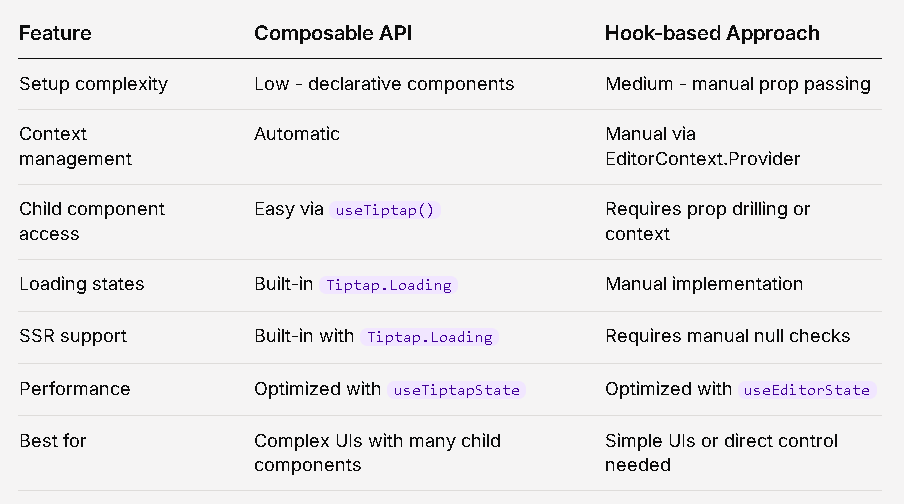
우리 프로젝트는 복잡하기도 하고, 그렇게 direct control이 필요한 경우도 없을 것 같아서
이렇게 간단한 방식을 사용하는게 좋을것 같다.
-> 사용해봤는데 future v3 syntax에 존재할 거란다 (아직 stable한 상태로 npm에 제공하지 않음)..... 못씀..
// src/Editor.tsx
import { Tiptap, useEditor } from '@tiptap/react'
import StarterKit from '@tiptap/starter-kit'

function Editor() {
  const editor = useEditor({
    extensions: [StarterKit],
    content: '<p>Hello World!</p>',
  })

  return (
    <Tiptap instance={editor}>
      <Tiptap.Loading>Loading editor...</Tiptap.Loading>
      <MenuBar />
      <Tiptap.Content />
      <Tiptap.BubbleMenu>
        <button>Bold</button>
        <button>Italic</button>
      </Tiptap.BubbleMenu>
      <Tiptap.FloatingMenu>
        <button>Add heading</button>
      </Tiptap.FloatingMenu>
    </Tiptap>
  )
}

export default Editor
1번 방식과 다르게 Composable API를 사용하면 에디터의 상태를 미리 제공된 hook으로 확인 가능하다.
useTiptap hook
- 에디터 상태 확인할 수 있게 해주는
- The useTiptap hook returns the editor instance and an isReady flag that indicates whether the editor has finished initializing.
- useCurrentEditor이 EditorContext.Provider 안의 자식들에게만 사용됐듯이,
useTiptap hook도 <Tiptap>컴포넌트 안의 자식들에게만 사용 가능하다
import { useTiptap } from '@tiptap/react'

function MenuBar() {
  const { editor, isReady } = useTiptap()

  if (!isReady || !editor) {
    return null
  }

  return (
    <div className="menu-bar">
      <button
        onClick={() => editor.chain().focus().toggleBold().run()}
        className={editor.isActive('bold') ? 'is-active' : ''}
      >
        Bold
      </button>
    </div>
  )
}
useTiptapState
- For performance-sensitive components, use useTiptapState to subscribe to specific parts of the editor state.
- Prevents unnecessary re-renders when unrelated state changes.
- Only use useTiptapState when the editor is ready. Check isReady from useTiptap() before rendering components that use this hook.
import { useTiptap, useTiptapState } from '@tiptap/react'

function WordCount() {
  const { isReady } = useTiptap()

  const wordCount = useTiptapState((state) => {
    const text = state.editor.state.doc.textContent
    return text.split(/\s+/).filter(Boolean).length
  })

  if (!isReady) {
    return null
  }

  return <span>{wordCount} words</span>
}
Without this,
- The component re-renders on every editor transaction
- Cursor move → re-render
- Selection change → re-render
- Undo history update → re-render
- Plugin metadata change → re-render
원리는 다음과 같다:
- Tiptap subscribes to editor transactions
- After each transaction, it runs your selector function
- It compares the previous return value with the new return value
- Only if they are different, React re-renders the component
So the subscription is not to the editor, but to the result of your selector.
팀 노션 페이지에 문서화 하기

귀찮아도 개인적으로 정리한거 팀 노션 페이지에도 정리하자
팀원들이 보면 좋을거 아니야
https://www.notion.so/snorose/TF-1e87ef0aa3bf8097953ac6a583543426?source=copy_link
'웹프로젝트 > 스노로즈' 카테고리의 다른 글
| [2026.02.13] 당장 필요하지 않은 코드는 없애라 (0) | 2026.02.13 |
|---|---|
| [2026.02.13] rest.css (0) | 2026.02.13 |
| [2026.02.06] 디플로이 후 에러 로그하는 방식 (0) | 2026.02.07 |
| [2026.02.05] 첨부파일 작업 prod 실배포 때 생긴 에러 (0) | 2026.02.06 |
| [2026.02.06] 코드 리뷰 템플릿 적용 (0) | 2026.02.06 |