

따꿍의 프로젝트
[Precourse] 문자열 덧셈 계산기 본문
README로 미리 구현 기능 목록 정리하기
아주 좋은 방식인것 같다.
시작하기 전에 내가 무슨 작업을 해야하고, 어떤 라이브러리를 찾아봐야하고,
어떤 순서로 코드를 작성해야하는지 좀 오래 생각하게 만들어주는 것 같다.
지금까지 약간 직감적으로 코드 만들어보고,
콘솔 찍어서 디버깅 하고,
코드 수정해서 또 테스트하고
이런식으로 작성했는데 이러면 몇가지 문제점들이 있었다
1) 코드가 너저분함
2) 의외로 오래걸림. 미리 플랜을 짜는게 세팅이 오래걸리지 플랜대로 쭉쭉 해결해나가면 되니까 빠름.
3) 코딩하다보면 내가 뭘 하고 있는지 까먹음
4) 한꺼번에 커밋 날리게 됨 (⭐내 고질적인 문제... 한꺼번에 커밋 날려서 일 안한것 같고, 롤백하기도 힘들고...)
이번에 미리 구현 목록 정리하니까 작업이 깔끔해져서 좋은 것 같다 희희
커밋 양식
지금까지 프로젝트 하는 사람들 끼리의 자체적인 커밋양식을 지키며 커밋 해왔어서
Angular JS 깃 커밋 양식은 무엇일까 좀 긴장했다.
정리해보니까 그렇게 어려운 것은 아니었다.
<type>(<scope>): <subject>
<body>
<footer>
- The subject line is mandatory; body and footer are optional depending on the change.
- No line in the commit message should be longer than 100 characters
1) type (scope): subject
- <type>: a keyword indicating the kind of change, selected from a limited list, such as:
- feat (new feature)
- fix (bug fix)
- docs (documentation)
- style (formatting, white-space, semicolons, etc.)
- refactor (code change that neither fixes a bug nor adds a feature)
- test (adding or correcting tests)
- chore (maintenance tasks)
- <scope>: a noun describing the area of the codebase that’s affected (optional, but encouraged). For example, it could be a module, component, or feature name.
- <subject>: a short imperative-style description (present tense, no trailing period). For example, “add validation for user input”, not “added” or “adds.”
2) body
- Provides more context: why the change was made, contrast with previous behavior, and any additional details.
- Use the imperative, present tense style (same guideline as subject).
- Separate the body from the subject with a blank line.
3) footer
- Used to document breaking changes and issue referencing.
- If the commit closes issues, use Closes #<issue-number> (or multiple numbers)
예시)
feat(auth): add JWT token authentication
Add support for issuing JSON Web Tokens after login, enabling stateless session validation for API routes.
Closes #42
fix(parser): correct null pointer exception in input parser
Previously, passing `null` input would trigger an unhandled exception. Now the parser checks for null and returns a descriptive error.
Closes #95
결론
내가 평상시에 쓰는 커밋 양식과 크게 차이는 안 났다. 대신 좀 신경써야하는 부분이 다음과 같았다
- 타입에 []을 쓰지 않는다. 그냥 단순히 타입을 쓴다.
ex) feat
- 어디에 변경을 적용했는지 scope를 적어주면 좋다
- body는 현재형 동사 형태로 쓰는 것이 좋다.
그래서 이번에 README를 커밋했을 떄 이렇게 커밋했다.
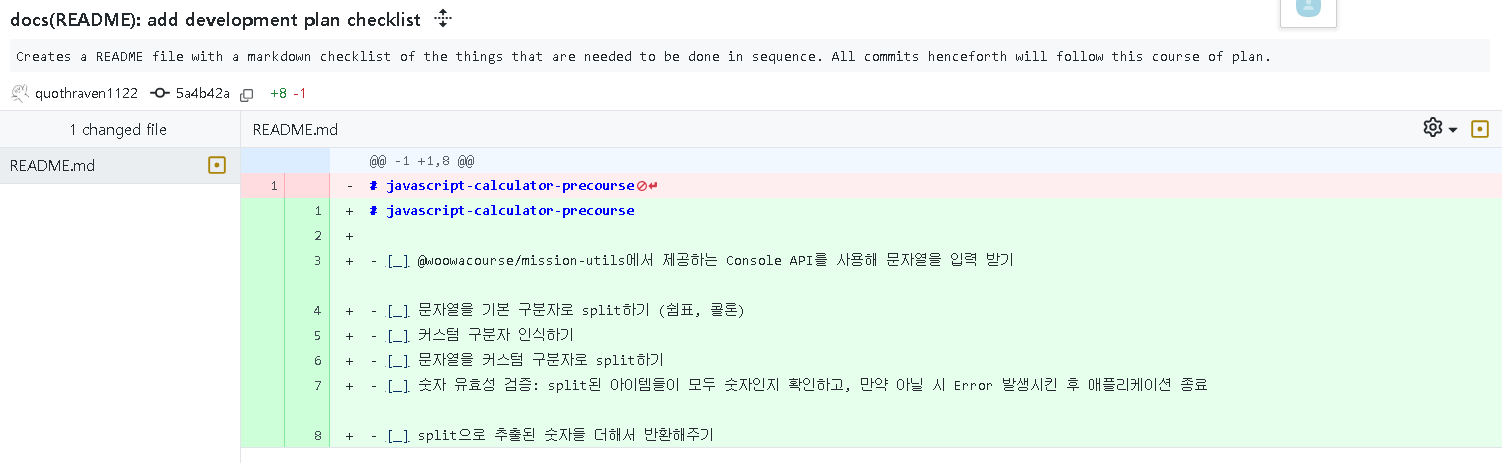
딱시 이슈를 작성하라는 지시사항은 없었으니,
이슈를 close하는 footer은 만들지 않았다.
1. 문자열 입력 받기
코드 돌리기
- node src/index.js사용하기
- 아니면 npm run start쓰기
(package.json에서 확인 가능)
라이브러리 찾지 못함
import { Console } from "@woowacourse/mission-utils";

class App {
  async run() {
    const input = await Console.readLineAsync("덧셈할 문자열을 입력해 주세요.");
    Console.print(input);
  }
}

export default App;

...알고보니까 너무 당연한 문제였다...
@woowacourse 패키지가 원래 있는 놈은 아니니까 npm i를 해줬어야 한 것이다.
package.json에 있으니까 써져야지! 이러고 있었는데
...로컬에 다운을 안 받고 있었다! ㅋㅋㅋ..
2. 기본 구분자로 split하기
콤마와 콜론 둘다로 split하기
import { Console } from "@woowacourse/mission-utils";

class App {
  async run() {
    const input = await Console.readLineAsync(
      "덧셈할 문자열을 입력해 주세요.\n"
    );
    const numbers = input.split(/[,|:]/);
    Console.print(numbers);
  }
}

export default App;
사실 regular expression 써야하는 것은 찾아보기도 전에 알고 있었다.
문제는 regular expression 작성하는 방식을 외우지 않고 어렴풋이 알고만 있어서....
이 참에 regular expression 좀 배워보려고 한다.
3. 커스텀 구분자로 split하기
\n과 \\n의 차이
import { Console } from "@woowacourse/mission-utils";

class App {
  async run() {
    const input = await Console.readLineAsync(
      "덧셈할 문자열을 입력해 주세요.\n"
    );
    let numbers;

    if (input.startsWith("//")) {
      //custom delimiter 사용
      // "//" 다음 char이 구분자
      const customDelimiter = input[2];
      // "\n"으로 split하면 왼쪽이 "//{delimiter}", 오른쪽이 숫자 리스트가 된다
      const numbersWithCustomDelimiter = input.split("\n")[1];
      console.log(numbersWithCustomDelimiter);

      numbers = numbersWithCustomDelimiter.split(customDelimiter);
    } else {
      //default delimiter 사용
      numbers = input.split(/[,|:]/);
    }

    Console.print(numbers);
  }
}

export default App;
numbersWithCustomDelimiter이 undefined이 나오고 있어서 이후의 split이 오류가 생기고 있다.
왜 그러지 생각해보니까
\n은 newline이라서 input.split("\n")을 하면 진짜 newline을 찾아서 split해준다.
근데 우리는 그걸 원하는게 아니라 그냥 character들 \과 n을 찾는거라서
그럴려면 얘는 newline을 뜻하는게 아니라고 표시해줘야한다.
그래서 split("\\n")을 해줘야하는 것이다.
결론은 이렇게 된다.
import { Console } from "@woowacourse/mission-utils";

class App {
  async run() {
    const input = await Console.readLineAsync(
      "덧셈할 문자열을 입력해 주세요.\n"
    );
    let numbers;

    if (input.startsWith("//")) {
      //custom delimiter 사용
      // "//" 다음 char이 구분자
      const customDelimiter = input[2];
      // "\n"으로 split하면 왼쪽이 "//{delimiter}", 오른쪽이 숫자 리스트가 된다
      const numbersWithCustomDelimiter = input.split("\\n")[1];

      numbers = numbersWithCustomDelimiter.split(customDelimiter);
    } else {
      //default delimiter 사용
      numbers = input.split(/[,|:]/);
    }

    Console.print(numbers);
  }
}

export default App;
4. 에러 처리
- Use split instead of index just in case custom delimiters are longer than one character
원래 string[index]로 추출해냈는데, 혹시나 delimiter이 1char보다 길 수 있으므로
slice(2)로 앞에 //을 없애고 난 후
\\n으로 split해서 delimiter와 split해야하는 놈을 얻어내는 코드로 변경했다.
- Check for presence of "\\n" when parsing custom delimiters to prevent split errors
//으로 시작해서 들어와봤는데 \\n이 없어서
없는걸로 split하다 보니 에러가 발생해서,
애초에 //으로 시작하는 것을 인식할때 \\n도 존재하는지 확인하는 것이 좋아 보여서
&& input.includes("\\n")을 추가했다
- Validate that all input numbers are actual numbers
forEach로 돌아가면서 split된 애들이 모두 숫자인지 확인해줬다.
이게 string을 split해서 얻은 것이니
Number()을 해주고, 만약 안의 값이 character을 포함해서 NaN을 리턴하면 (isNan으로 확인)
Error을 throw해준다.
- Use try/catch and return to handle errors and print messages without using process.exit
process.exit 대신 return을 사용했다.
- Change regular expression
이게 "/[,|:]/"이면 comma, colon 뿐만 아니라 |로도 split 되더라.
그래서 "/[, :]/"로 바꿨고,
|가 더이상 안 되는 것을 확인했다.
import { Console } from "@woowacourse/mission-utils";

class App {
  async run() {
    try {
      const input = await Console.readLineAsync(
        "덧셈할 문자열을 입력해 주세요.\n"
      );
      let numbers;

      if (input.startsWith("//") && input.includes("\\n")) {
        //custom delimiter 사용

        // "\n"으로 split하면 왼쪽이 구분자, 오른쪽이 숫자 리스트가 된다
        const [customDelimiter, numbersWithCustomDelimiter] = input
          .slice(2)
          .split("\\n");

        numbers = numbersWithCustomDelimiter.split(customDelimiter);
      } else {
        //default delimiter 사용
        numbers = input.split(/[, :]/);
      }

      //numbers 안의 모든 element가 실제로 number인지 확인
      numbers.forEach((i) => {
        if (isNaN(Number(i))) {
          throw new Error("[ERROR] input error");
        }
      });
      Console.print(numbers);
    } catch (e) {
      Console.print(e.message);
      return;
    }
  }
}

export default App;
5. 제출 (& 문제 조건 보기)
제출 해보니 예제 테스트 결과가 1/2로 나왔다.
테스트 둘 중 하나가 실패했다는 것이다.
에러처리 엄청 빡세게 했는데 왜 실패했을까 엄청 고민했다.
왜 틀렸는지 이유를 보고 싶었는데 어디서 볼 지 감이 안 왔다.
처음에는 테스트케이스가 딴 깃허브 레포지토리에 저장됐나 생각해서
그 레포지토리를 찾으러 똥꼬쇼를 했다.
우테코 웹사이트 들어가서 개발자 도구로 개발자 html도 보고 네트워크도 보고
별일 다 했는데 뭐 동시에 부르는게 하나도 없는것 아니겠는가
그래서 설마설마하고 프로젝트 폴더를 확인하니까
ApplicationTest.js이라는 파일이 있었다.
import App from "../src/App.js";
import { MissionUtils } from "@woowacourse/mission-utils";

const mockQuestions = (inputs) => {
  MissionUtils.Console.readLineAsync = jest.fn();

  MissionUtils.Console.readLineAsync.mockImplementation(() => {
    const input = inputs.shift();
    return Promise.resolve(input);
  });
};

const getLogSpy = () => {
  const logSpy = jest.spyOn(MissionUtils.Console, "print");
  logSpy.mockClear();
  return logSpy;
};

describe("문자열 계산기", () => {
  test("커스텀 구분자 사용", async () => {
    const inputs = ["//;\\n1"];
    mockQuestions(inputs);

    const logSpy = getLogSpy();
    const outputs = ["결과 : 1"];

    const app = new App();
    await app.run();

    outputs.forEach((output) => {
      expect(logSpy).toHaveBeenCalledWith(expect.stringContaining(output));
    });
  });

  test("예외 테스트", async () => {
    const inputs = ["-1,2,3"];
    mockQuestions(inputs);

    const app = new App();

    await expect(app.run()).rejects.toThrow("[ERROR]");
  });
});
읽어 보니 테스트는 크게 두가지가 있었다
1. 커스텈 구분자 사용시 잘 되는지 확인하기
-> "//;\\n1"으로 테스트함
2. 예외사항 테스트하기
-> "-1,2,3"으로 테스트함
여기서 멈칫했다. 음? -1이라니? 그런 조건이 있었나?
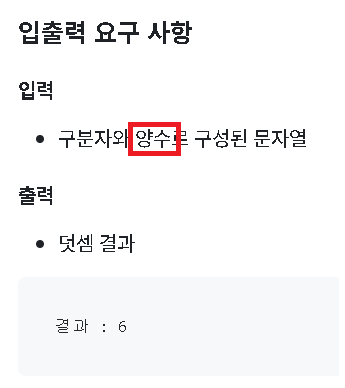
다시 확인해보니 있었다. 이런 간단한 조건도 못 봤다니...
다음부터는 문제 조건을 유심히 봐야겠다.
따라서 입력된 숫자들이 모두 양수인지 확인해주는 코드까지 추가하고 커밋했다.
Number(i) < 0일시 에러를 던지는 방식을 사용했다.
import { Console } from "@woowacourse/mission-utils";

class App {
  async run() {
    try {
      const input = await Console.readLineAsync(
        "덧셈할 문자열을 입력해 주세요.\n"
      );
      let numbers;

      if (input.startsWith("//") && input.includes("\\n")) {
        //custom delimiter 사용

        // "\n"으로 split하면 왼쪽이 구분자, 오른쪽이 숫자 리스트가 된다
        const [customDelimiter, numbersWithCustomDelimiter] = input
          .slice(2)
          .split("\\n");

        numbers = numbersWithCustomDelimiter.split(customDelimiter);
      } else {
        //default delimiter 사용
        numbers = input.split(/[, :]/);
      }

      //numbers 안의 모든 element가 실제로 number인지 확인
      numbers.forEach((i) => {
        if (isNaN(Number(i)) || Number(i) < 0) {
          throw new Error("[ERROR] input error");
        }
      });

      const sum = numbers.reduce((acc, n) => acc + Number(n), 0);
      Console.print("결과 : " + sum);
      return sum;
    } catch (e) {
      throw e;
    }
  }
}

export default App;
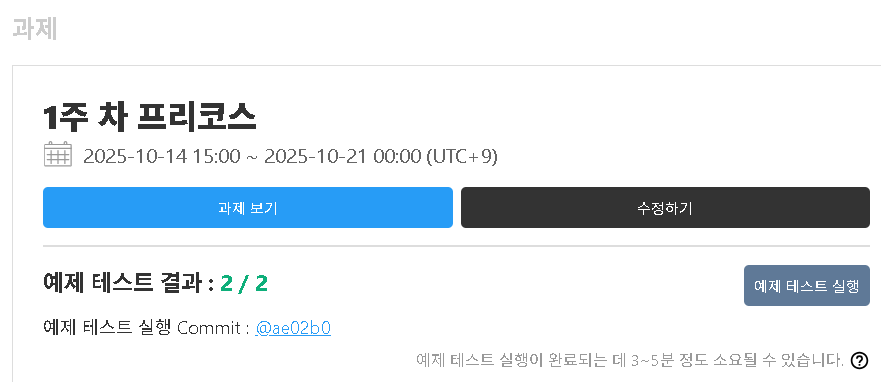
커밋하고 다시 예제 테스트를 실행하니
잘 통과했다는 결과를 받았다.
피드백 후 배운 점
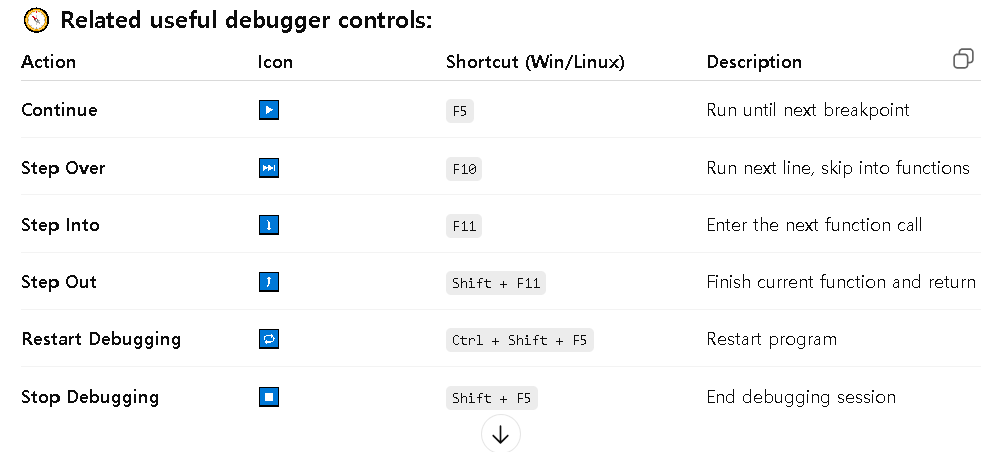
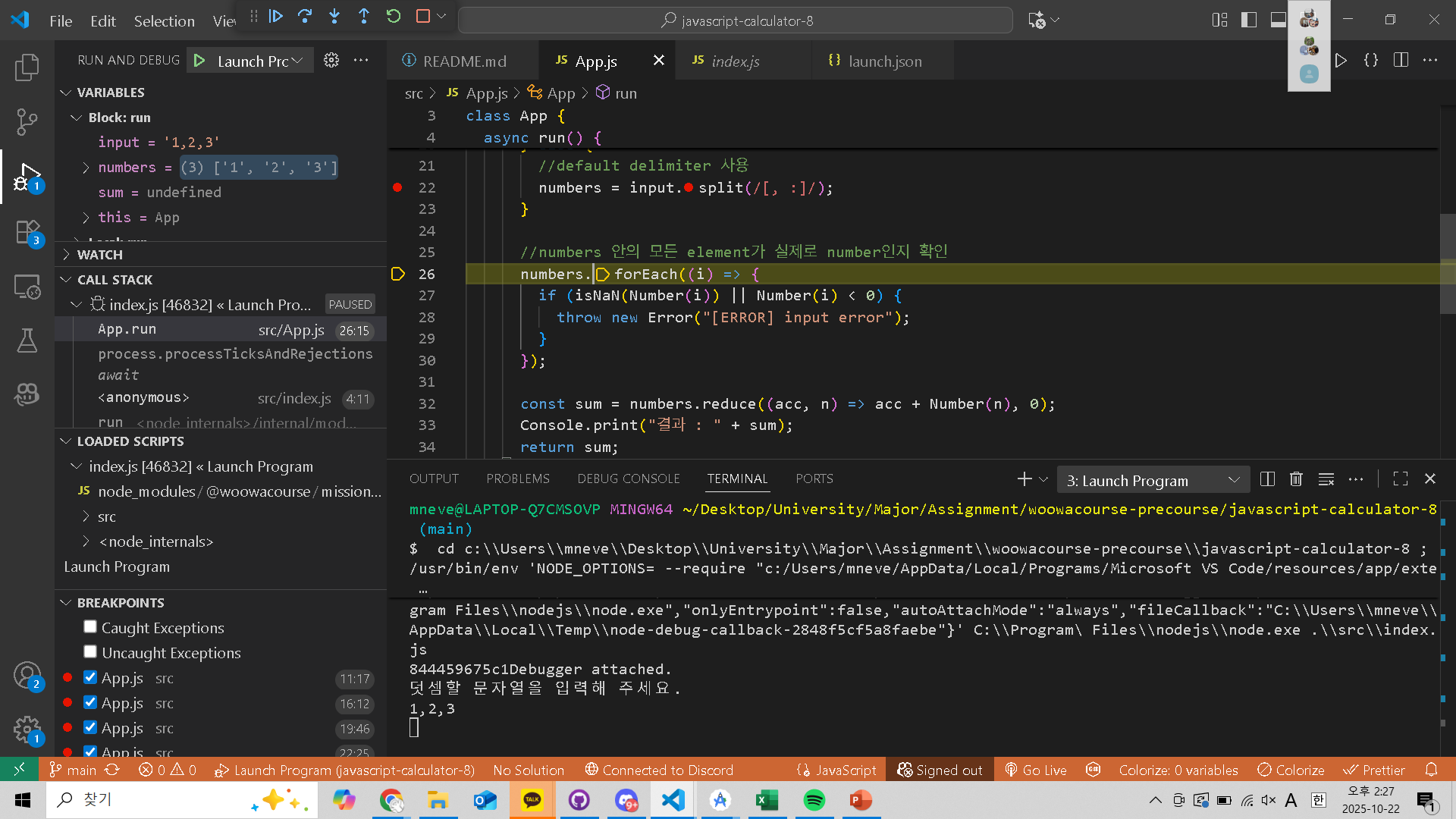
오류를 찾을 때 출력 함수 대신 디버거를 사용한다
디버깅은 프로그램 오류를 감지하고 수정하는 과정이다. 문법 오류와 같이 컴파일러가 처리하기 때문에 쉽게 발견할 수 있는 오류도 있지만, 어느 지점에서 오류가 발생했는지 파악하기 어려운 경우도 있다. 이때 코드 중간에 console.log()를 사용하여 매번 코드를 실행하여 문제를 파악할 수 있으나, 이는 비효율적이며 불필요한 코드가 남을 수 있다. 하지만 디버거를 이용하면 코드 내부의 상태 값이 어떻게 변하는지, 어떤 흐름으로 프로그램이 실행되는지 이해할 수 있다. 현재 사용 중인 IDE에서 애플리케이션을 디버깅하는 방법을 학습한다.
이를 사용하기 위해서
launch.json을 수정해야했다.
{
  // Use IntelliSense to learn about possible attributes.
  // Hover to view descriptions of existing attributes.
  // For more information, visit: https://go.microsoft.com/fwlink/?linkid=830387
  "version": "0.2.0",
  "configurations": [
    {
      "type": "node",
      "request": "launch",
      "name": "Launch Program",
      "skipFiles": ["<node_internals>/**"],
      "program": "${workspaceFolder}\\src\\index.js",
      "console": "integratedTerminal"
    }
  ]
}
-> "console": "integratedTerminal"이 추가됐다
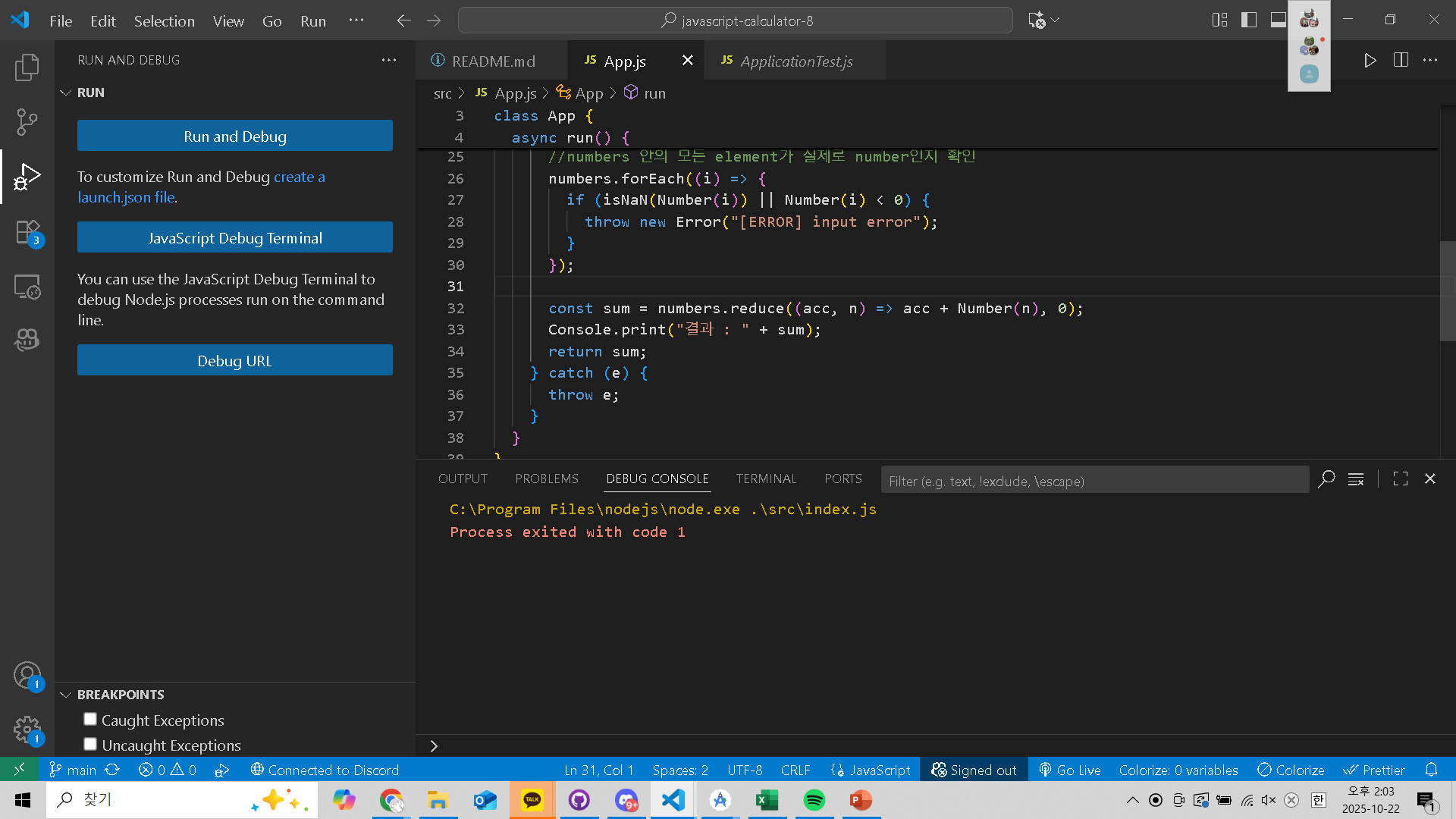
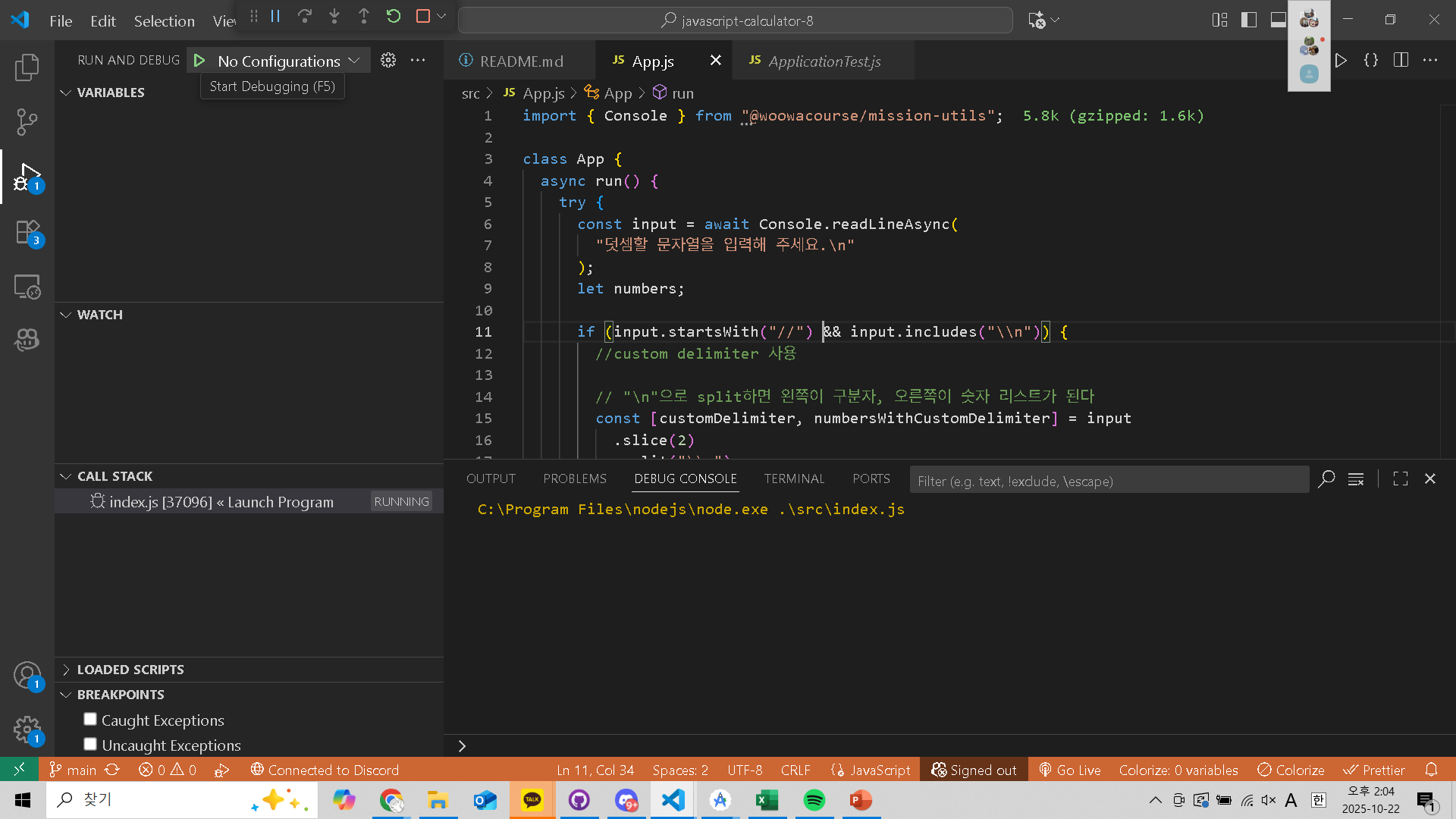
코드 돌리다가 디버거가 멈추고 싶은 곳에 빨간 점을 찍어준다
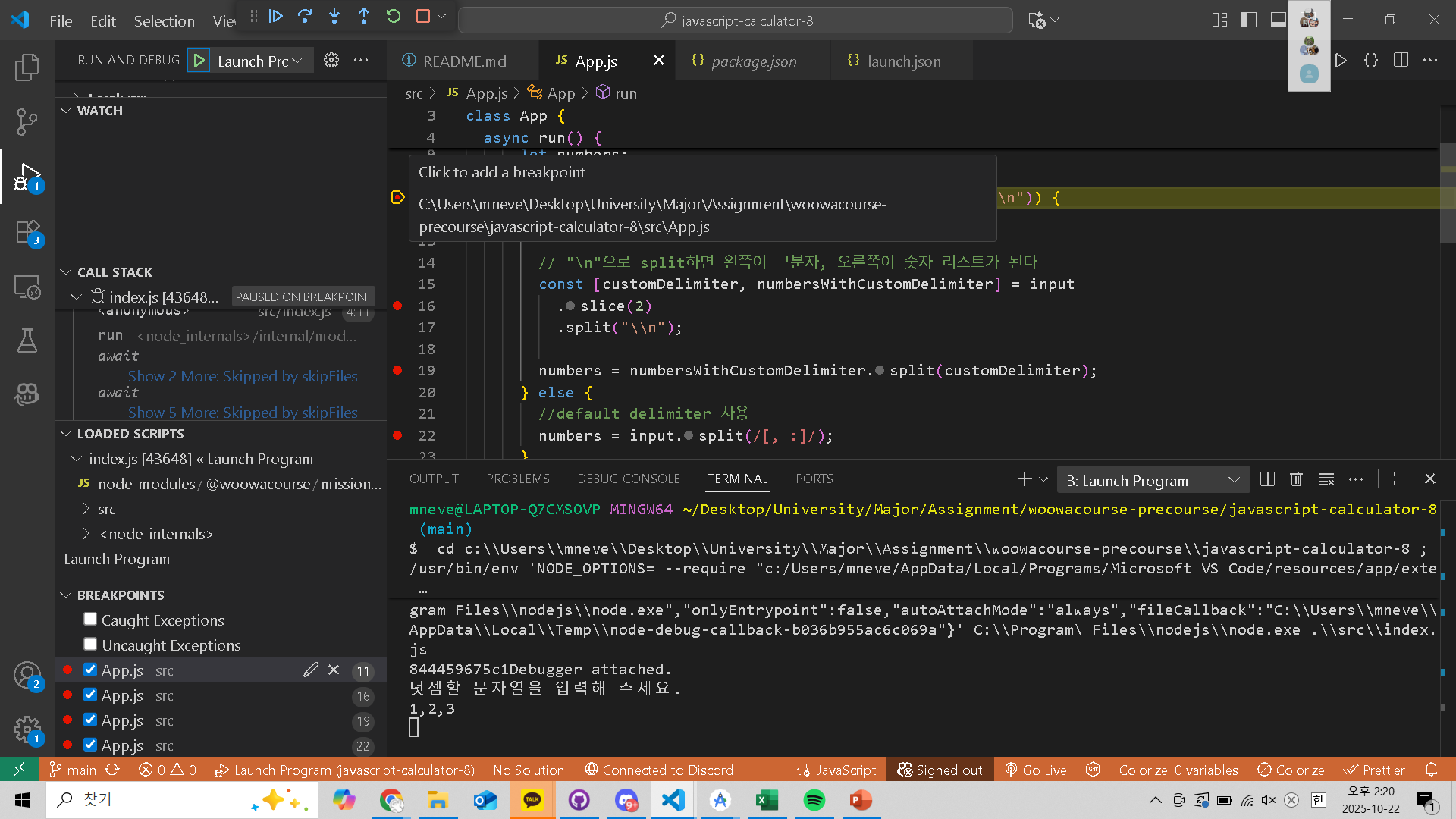
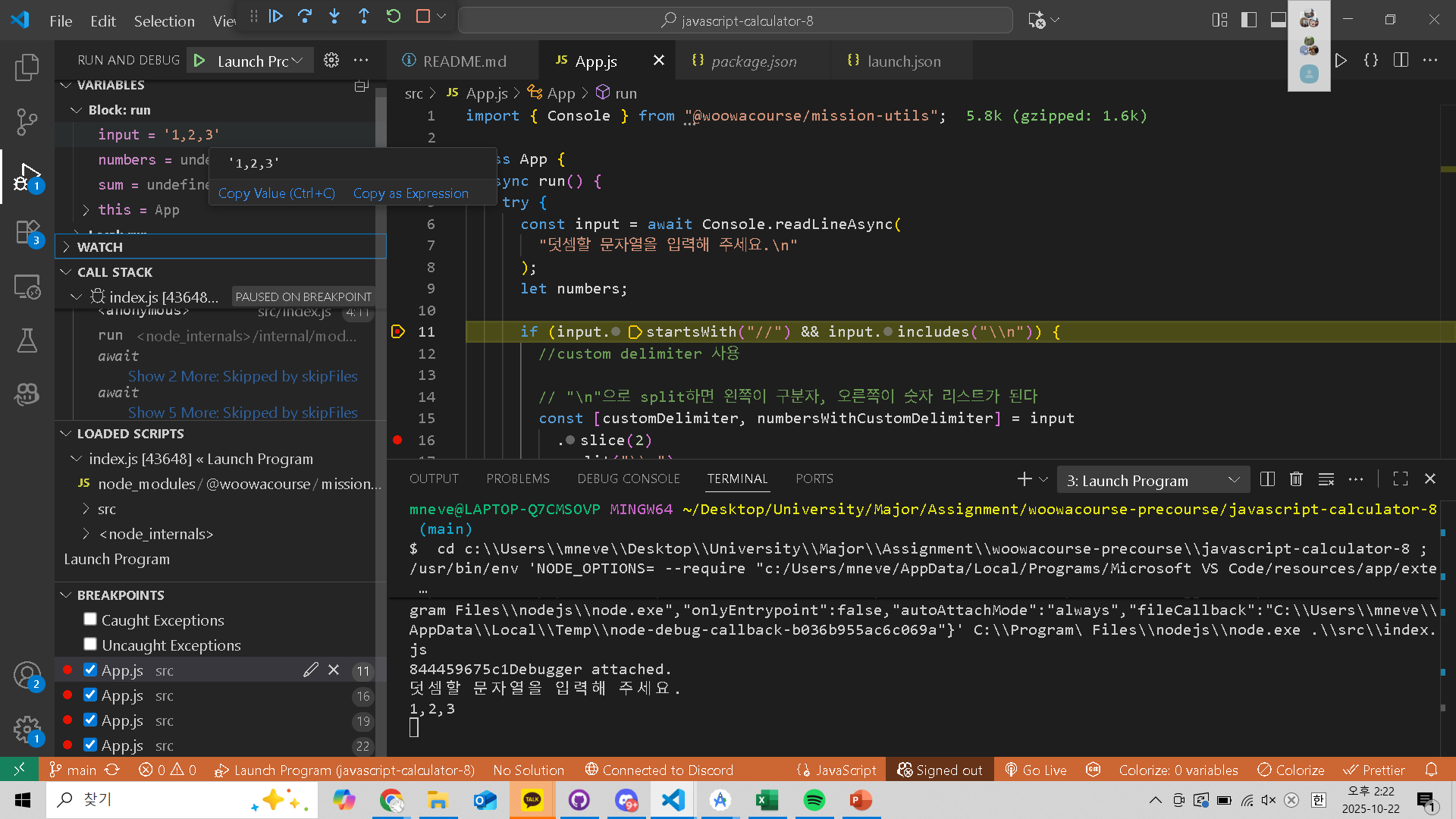
멈춘 곳의 각 variable의 값을 볼 수 있다
리뷰 후 배운 점
- 변수 명을 조금 더 직관적으로 표현하기
- run()함수 안에 모든 기능이 한꺼번에 포함되어 있어,
각 기능을 별도 함수로 분리하면 가독성과 유지보수성이 더 좋아질 것 같다
- 에러 반환을 조건별로 나눠 조금 더 구체적으로 출력해주면 좋을 것 같다
- " 이렇게 하는 것도 좋네요! 그런데 //로 구분자를 시작했는데 \n로 닫지 않은 경우에 대해서도 예외 처리를 하면 좋을거 같아요! 지금은 //1;2,3 이런 입력을 주면 하단의 숫자인지 확인하는 로직에서 걸리게 되네요. 의도와 다른 케이스인 것 같습니당!"
사실 거기서 걸러지는 것이 내 의도였고 잘 돌아가는 것이다만.....명시적으로 그게 '//으로 시작했으나 \n으로 닫지 않은 경우'를 의도했는지 보이지 않아서 리뷰를 한 모양이다. 하긴 에러처리하는게 명시적으로 어떤 것을 걸러주는지 표기해주는게 가시성에 좋긴 하니 알아두는건 좋을 것 같긴 하다
'우테코' 카테고리의 다른 글
| [Precourse] 최종 코딩 테스트 - 행성 로또 후기 (1) | 2026.01.10 |
|---|---|
| [Precourse] 프리코스 챌린지 - Snake 게임 만들기 (0) | 2025.11.22 |
| [Precourse] 로또 (0) | 2025.11.01 |
| [Precourse] 자동차 경주 (0) | 2025.10.25 |